Customization
This guide covers how you can customize your Discord status.
Finding the settings
All customization options are located under Discord -> Appearance in the settings of the app. The "General" tab applies to all media players, while the player tabs contain overrides for individual settings which only apply to that respective media player.
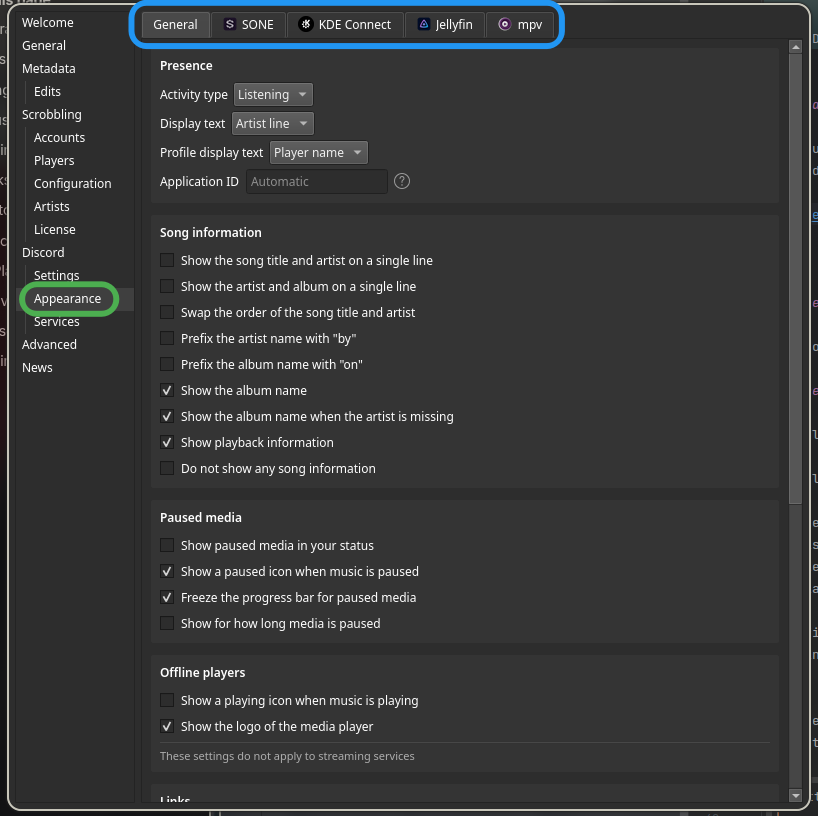
For an explanation of each general customization option, read General customization. If you are interested in player-specific customization, read Per-player customization.
General customization
These options apply to all enabled media players.
Presence
Controls the main Discord activity line that appears on your nameplate.
Possible choices to select from:
- Player name: Name of the music player ("Spotify", "Apple Music", etc.)
- Artist line: Names of all song artists separated by commas (Example: "Taylor Swift, Ed Sheeran, Future")
- Title line: Name of the currently playing song. (Example: "End Game")
- Media type: Usually "Music"
| Setting | Description | Example |
|---|---|---|
| Activity type | The activity type displayed in your widget ("Listening to", "Watching", or "Playing") | "Listening to Spotify" |
| Display text | What shows up under your name on your nameplate. | "Olivia Rodrigo" |
| Profile display text | What appears next to the Activity type when clicking on your profile. Possible choices: Player name, Artist/Title line, Media type or Custom |
"Listening to Music" |
| Application ID | Use this to enter the application ID of an application to display the name of the application in all fields where "Custom" is selected | "Listening to Your Custom Text |
Displaying custom text
To use your own custom text, go to the Discord Developer Portal and click on "New application". Enter the desired text you want to display on your profile and click on "Create". On the new page that opened, look for "Application ID" and copy it into the "Application ID" field in the Music Presence settings. If the ID is valid the text that will be shown on your profile is displayed next to the entered ID.
Song information
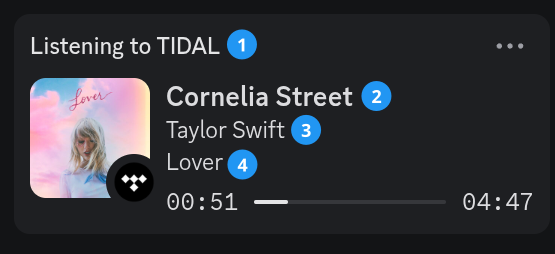
Edit what and how the song details are displayed in your profile and in the member list. The display order for the profile widget are:
- [Activity type] [Profile display text]
- [Title line]
- [Artist line]
- [Album]
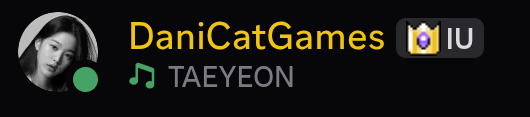
The selected "Display text" option is shown under your nameplate. This is the Artist line by default.
| Option | Effect |
|---|---|
| Show the song title and artist on a single line | Combines title and artist fields. Both the artist and title lines are set to "Song name - Artist". The artist line is removed from the profile widget. Incompatible with the setting below. |
| Show the artist and album on a single line | Combines artist and album fields together. Both the artist and title lines are set to "Artist - Album name". The album line is removed from the profile widget. Incompatible with the setting above. |
| Swap the order of the song title and artist | Reverses the title/artist order. |
| Prefix the artist name with "by" | Prepends the word "by" before the artist names. |
| Prefix the album name with "on" | Prepends the word "on" before the album name. |
| Show the album name | Show the album name on the profile widget. Disabling this also disables "Show the artist and album on a single line". Cannot be turned off when "Show the artist and album on a single line" is enabled. |
| Show the album name when the artist is missing | Displays the album as a fallback when no artist metadata is present. Works even when "Show the album name" is turned off. The artist and album lines are both set to "Album name" |
| Show playback information | Shows the playback progress bar. If disabled, a simple clock counting up will still be shown and cannot be disabled due to discord limitations. |
| Do not show any song information | Hides all track metadata except the progres bar, activity type, and fallback cover image from your profile widget and nameplate. |
Tip
You can combine "Show song title and artist on a single line" and "Swap the order of the song title and artist" to set the artist and title lines to "Artist - Song name".
Tip
You can combine "Show the artist and album on a single line" and "Swap the order of the song title and artist" to set the song line to "Artist" and set the album and artist lines to "Song name - Album".
Paused media
Choose what happens when your media is paused.
| Option | Effect |
|---|---|
| Show paused media in your status | Keeps the track visible in Discord while paused. |
| Show a paused icon when music is paused | Adds a pause icon in the bottom right of the cover image. |
| Freeze the progress bar for paused media | Freezes the prograss bar or elapsed time at 0 seconds. |
| Show for how long media is paused | Displays for how long the media has been paused. (does the same thing as disabling freeze progress bar???? from what i can test) |
Offline players
Configure appearance settings for local media players.
| Option | Effect |
|---|---|
| Show a playing icon when music is playing | Shows a playing icon in the bottom right corner of the cover image. |
| Show the logo of the media player | Shows the logo of the media player in the bottom right corner of the cover image. |
Warning
These settings do not apply to streaming services, as their ToS indicate that a logo has to be visible.
Links
These settings allow clicking on the song/artist/album name in the profile widget to open them in a browser tab on the streaming service's website.
Buttons
| Option | Effect |
|---|---|
| Show a custom button | Adds a button to your profile displaying the entered text. Clicking the button does nothing by default. |
| Custom button URL | Links people to the entered URL when clicking on the custom button. The custom button text entered above is still shown. |
| Show a button that links to the song | Adds a button that when pressing it sends people to the URL of the song. Only available on streaming services where the API is turned on. Always enabled when "Clicking the title opens the track page" is disabled. |
| Display the "Listen to this song" button as "Play on ..." | Display the button as "Play on [Streaming Service]" instead of "Listen to this song". (Example: "Play on Spotify" when streaming from spotify.) |
| Show "Get this status" in the presence | Adds a button to your profile that links to the Music Presence website. Due to discord limitations, this button will not be shown when both the custom button and the link to the song button are enabled. |
Warning
Due to a discord bug, buttons are only visible to other users. You cannot see your own buttons, but other people can see them and use them. Use an alternate account and look at the profile of your main account if you want to see the buttons.
Miscellaneous
| Option | Effect |
|---|---|
| Placeholder for missing cover images | Select the image to display on the profile widget when no album cover is found. |
Per-player customization
Each detected player has its own tab in the settings window, the settings override the global settings for that player only.
Individual settings
Only available to some media players, mostly community clients for streaming services. This setting overrides the name and replaces it with the name of the streaming service.
Presence
These settings work the same as the global settings, but only apply to this player. The Application ID setting is separate from the global setting so different players can have different custom texts.
Overridden fields show a "Reset" button to reset them to the settings defined in the General tab.
Paused media
Offline players
These settings override the global settings for this player only and are only available to local media players.
Overridden fields show a "Reset" button to reset them to the settings defined in the General tab.