Media Player Setup
This guide covers how to set up Music Presence with your media player.
Overview
- First, check if your media player is in the list of supported media players
- If your media player is listed, but not detected, read these sections carefully:
- Media player configuration: You might need to enable a specific setting in your media player or it might need a plugin or helper program to be detected
- Media players with known issues: Some media players have limitations
- Websites and browser support: Websites are not supported yet, with a few exceptions. You need to install a desktop application for now
- If your media player is still not detected, follow these steps:
- Check, if your media player installation fulfills the minimum requirements
- If it does, follow the steps to add support for your media player
Minimum requirements
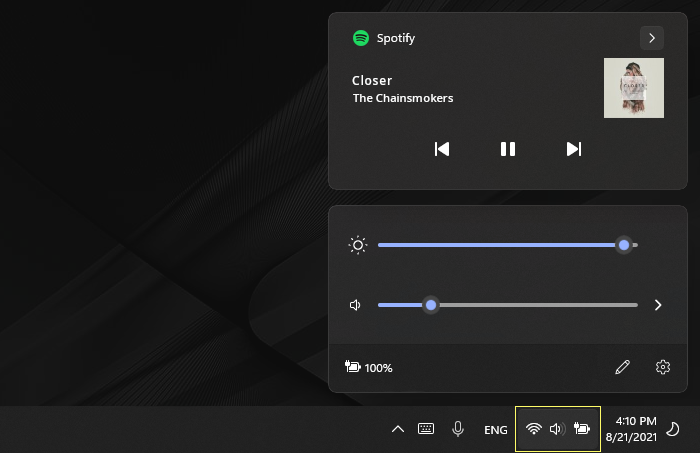
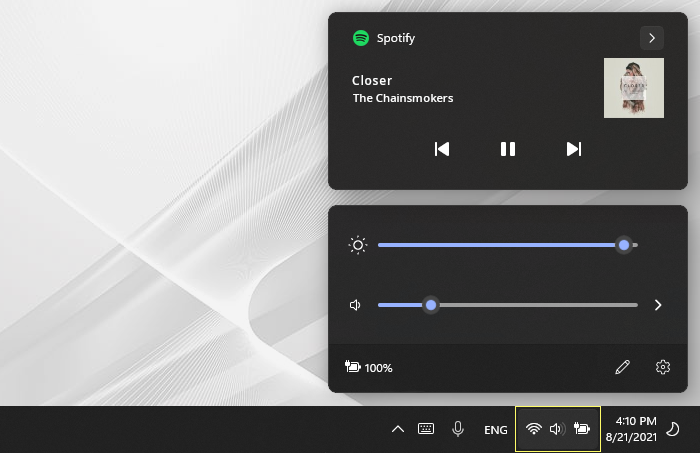
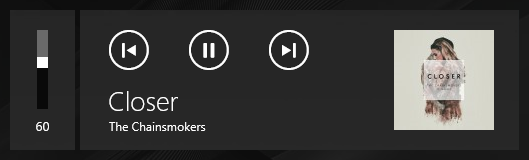
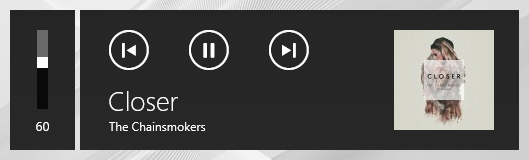
For Music Presence to detect media playback, applications must report information about what media they are playing to your operating system. You can see if your media player does this, by checking the media control interface of your device:
Windows 11 Click on the section on the right of your task bar that is highlighted in the screenshot to see whether an application reports what it is playing.
Windows 10 Press a media key on your keyboard to see the information overlay.
If you don't have media keys on your keyboard, try debugging your media player.
Click on the icon in the menu bar that is shown in the screenshot to see whether an application reports what it is playing.
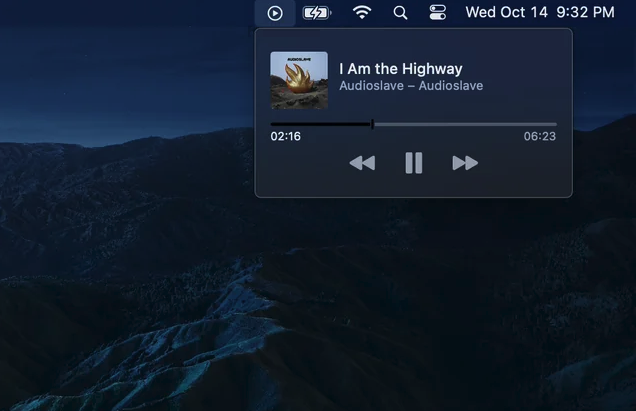
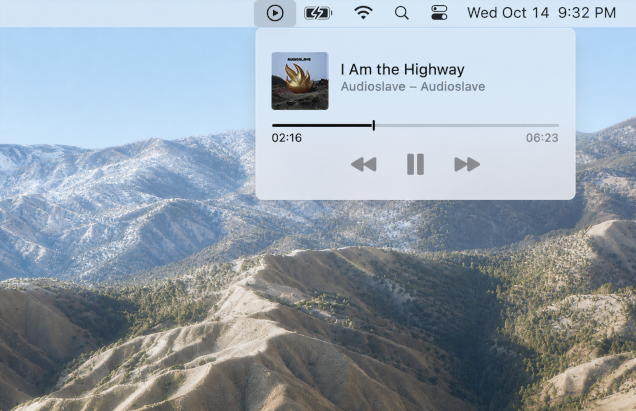
TODO
Media player configuration
Depending on the media player you are using, you may need to install a plugin, run a helper program or enable a specific setting. Refer to the table below for instructions.
Make sure to select the correct operating system by clicking on the respective tab.
| Player | Instructions | |
|---|---|---|
 |
AIMP | Install the Windows Media Control plugin for basic metadata reporting. Alternatively, you can run the newer AIMP SMTC helper program. Compared to the plugin, it also reports the album name and track duration. |
 |
Audacious | Install the Windows System Media Transport Controls Plugin plugin. |
 |
Feishin | Switch to the web backend, then go to Settings -> Hotkeys and enable Media Session. Note that Music Presence can only identify Feishin as mpv, when you use the mpv backend. |
 |
foobar2000 | Install the foo_mediacontrol plugin. Click Releases to find all downloads. Alternatively you can also enable Windows Universal Volume Control under advanced preferences, but foobar2000 will not report the album name or the track duration then. |
 |
iTunes | You need to run the iTunes-SMTC helper program alongside Music Presence. You can download it from the Releases or the |
 |
MPC-HC | Under Player -> User Interface -> Windows Integration enable Control via Windows UI (SMTC). If you don't have this setting, make sure to use this updated fork of MPC-HC: |
 |
mpv | mpv must either be run with the --media-controls=yes command line flag or by setting media-controls=yes in mpv.conf. |
 |
MusicBee | Install the mb_MediaControl plugin. Click Releases to find all downloads. After importing it into MusicBee, make sure the information window shows version 1.0.4 or newer. |
 |
NetEase Cloud Music / |
In the application settings go to 系統 ("System") and make sure that 开启SMTC ("Enable SMTC") is checked. This is required for the player to report what music it is playing. |
 |
VLC | Install the vlc-win10smtc plugin. |
 |
Winamp | Install the gen_smtc plugin. Click Releases to find all downloads. |
 |
Windows Media Player Legacy | Windows-Media-Player-Discord-RPC is a 2-in-1 program that allows Windows Media Player to be detected by Music Presence while it's running and also provides its own Discord RPC implementation. |
| Player | Instructions | |
|---|---|---|
|
iTunes | iTunes is not supported on Mac. Use Apple Music instead. |
|
mpv | You must install and run mpv using an .app bundle. mpv cannot be detected when run as a plain binary from the command line. |
| Player | Instructions | |
|---|---|---|
|
MusicBee | If you run MusicBee under Wine, install the mb_MPRISBee plugin. |
Media players with known issues
Some media players are known to not report what they are playing or are known to report inaccurate information. If you use one of these players, consider contacting the developer of that media player, so they can improve its integration with the system.
| Player | Instructions | |
|---|---|---|
 |
Amazon Music does not report any album cover image and sometimes reports very inaccurate or scrambled song metadata. | |
 |
Qobuz | Qobuz does not report what it is playing anymore since a past update. You can try downgrading or patching it (this may violate Qobuz's Terms of Services, use at your own risk). |
 |
TIDAL | TIDAL does not report the album name of the playing song. If the TIDAL API is enabled for Discord Presence, the album name can only be guessed and may sometimes be incorrect. |
 |
Windows Media Player | Windows Media Player is known to stop reporting what it is playing after playing a few songs, this is a bug in Windows Media Player. At times, it also does not report any album cover images. |
| Player | Instructions | |
|---|---|---|
|
Qobuz | Qobuz does not report what it is playing on Mac. For compatibility with Music Presence you will need to use a third-party player like QBZ. |

Websites and browser support
On Windows and Mac, you currently need to use the desktop application for the media player or streaming service you are using, as websites are not supported yet. The following table contains a list of supported official and third-party desktop applications.
Installing websites
Some websites show an "Install" button in the address bar. This does not install a desktop application, you are still running a website and it can't be detected by Music Presence. You need to install and run a proper desktop application.
| Player | Instructions | ||
|---|---|---|---|
 |
Install the Apple Music app from the Microsoft Store. | ||
 |
SoundCloud | Install the SoundCloud app from the Microsoft Store. | |
 |
Third-party Pear Desktop works well with Music Presence. | ||
  |
For these and other streaming services, download the desktop application from the official website. | ||
| Player | Instructions | ||
|---|---|---|---|
|
Install the Apple Music app from the App Store. | ||
|
SoundCloud | Third-party Nuage is a third-party client for SoundCloud. | |
|
Third-party Pear Desktop works well with Music Presence. | ||
| |
For these and other streaming services, download the desktop application from the official website. | ||
| Player | Instructions | |
|---|---|---|
| Firefox | Websites and streaming services can be detected when opened in Firefox or a Firefox-based browser, like LibreWolf or Zen Browser, if they are supported. | |
|
Third-party Sidra is a third-party client for Apple Music. | |
|
Deezer | Third-party Deezer for Linux is a third-party client for Deezer. |
|
Qobuz | Third-party QBZ is a third-party client for Qobuz. Unlike the official app for Windows and Mac, this client is fully compatible with Music Presence. |
|
Spotify | Install Spotify via your system's package manager, Flatpak or download the desktop application from spotify.com/download/linux. |
|
TIDAL | Third-party Tidal Hi-Fi and High Tide are third-party clients for TIDAL. |
|
Third-party Pear Desktop is a third-party client for YouTube Music. |
Support for websites is coming soon
Click "Subscribe" in the sidebar of this GitHub issue to receive e-mail updates. Meanwhile, you can already install and test the browser extension that will enable browser support later.
Multimedia and radio players
Discord Presence is disabled by default for multimedia players, radio players and any other media players that may report personal information or details about your location. You have to enable these explicitly, read Player Controls to find out how.
Adding support for a media player
If your media player is not detected, despite fulfilling the minimum requirements, your specific installation may not be recognized by Music Presence yet.
Follow these instructions to help add support for it:
- Open the Music Presence app
- Start playing something with your media player and let it play
- Click the
Music Presence icon in your tray menu. Where is this? - Click on "Help" and then on "Submit detected media players"
- A GitHub issue opens. Submit it and you'll receive a reply within at most a few days
- If you do not have a GitHub account, you can join the Discord server instead and leave a message that contains the URL that opened in your browser.
Resources
Debugging a media player
TODO
Support message template
TODO
Information for developers
TODO
TODO
Explain which media players need additional setup and which don't. Also explain that browser support is coming soon, but the browser extension that is needed can already be tested in terms of website compatibility.
Contribution guide: https://github.com/music-presence/documentation#contributing
Show the table of contents, if it's helpful.
Content notes
- https://github.com/ungive/discord-music-presence/blob/master/documentation/supported-media-players.md#required-plugins-and-helper-programs
- Mention plugins and helper programs
- Mention that most players should work out of the box
- Mention that some players need to be enabled explicitly for the Discord status
- Mention that all players of interested have to be enabled explicitly for Scrobbling (add this once Scrobbling has released, not before)
- Mention that browser support is coming soon (link to the corresponding page that mentions the browser extension)
- Link to the supported players page
- Explain how to add support for a media player (perhaps make a separate page for that?)
- GitHub issue to subscribe to for e-mail notifications for browser support: https://github.com/ungive/discord-music-presence/issues/5
- Firefox Add-on page: https://addons.mozilla.org/en-US/firefox/addon/media-control-extension/
- Chrome Web Store page: TBD
- Browser extension source code: https://github.com/ungive/media-control-extension/
- Is there another way to show the Windows 10 media overlay than with media keys on the keyboard only?
- Explain how to even know, if a media player is detected. Not everyone might know that it will show up in the Music Presence tray menu, when media is playing